
Instead of manually chasing prospect evidence before every meeting, connect SCOUTz to Microsoft Teams through a human-reviewed evidence handoff and a scheduled Teams reminder. This guide separates that practical workflow from a native product integration: it does not assume a SCOUTz connector, webhook, API, or automatic report export.
- Connect SCOUTz to Microsoft Teams with reviewed evidence and scheduled reminders, without assuming a native connector.
- Microsoft Teams alerts should preserve the source, run date, coverage limits, owner, and next question.
- Public-domain observations and customer-authorized Microsoft 365 evidence belong in separate evidence sections.
- Power Automate can schedule a Teams reminder; a person still reviews the evidence before sharing.
Why this matters
SCOUTz is best for MSP owners and sales leaders preparing prospect conversations with dated cybersecurity evidence. Teams gives your meeting owner a place to receive that preparation. The relationship and the sale stay with your MSP.
For an MSP evaluating the product in 2026, use Join Open Beta on the SCOUTz website as the primary next step. The client-provided October 15, 2026 product reference identifies Microsoft 365 Review and the report experience as Open Beta. Treat the workflow below as a controlled handoff, not documentation for an unverified product integration.
A useful alert answers three things: what ran, why the observation matters to this conversation, and what evidence would demonstrate a change. A notification that says only “security issue found” supplies none of that context.
Before you start
- Have access to the prospect evidence, the intended Teams destination, and the calendar or meeting record. For scheduled reminders, have permission to create a Power Automate cloud flow and use its Microsoft Teams connection.
- Confirm authorization before reviewing Microsoft 365 configuration and metadata. Public-domain observations do not establish tenant permissions, Conditional Access coverage, license assignments, device state, or sharing configuration.
- Check the destination’s membership before posting. A restricted report can still disclose sensitive details when its summary is copied into a wider channel; test the destination and its access separately from the report link.
Decide whether the alert contains a short summary, a report reference, or both. Keep detailed tenant evidence in your approved restricted location. Teams channel membership and report access are separate controls.
The reminder schedule below uses a recommended lead time of 1 business day before the meeting. Reserve 15 minutes for the meeting owner’s evidence review. These are operating choices, not measured performance claims.
Evidence packet
- Identify the prospect and meeting owner. Match the domain to the intended organization before attaching any observation. Similar names and subsidiary domains require confirmation.
- Separate public-domain observations from customer-authorized Microsoft 365 evidence. Keep those source boundaries visible in the packet and in the eventual message.
- Preserve the check name, affected object, source, run date, evidence state, coverage, and stated limits. Carry an expiry date when one is supplied; otherwise record the need for a freshness decision.
- Write the business implication as a bounded interpretation. State what the observation supports and what remains unknown.
- Assign an owner and a next question. Ask a person to review the claim before it reaches the meeting team.
Expected result: The meeting owner has a dated observation, a defensible interpretation, and a question to ask. The packet does not convert a finding into a confirmed breach, buying intent, or an unresolved problem.
For example, a published DMARC policy requesting monitoring supports a discussion about intended enforcement and report review. It does not establish that a mailbox is compromised. Ask who reviews the reports and whether monitoring-only remains intended.
Use the following evidence packet fields as your working structure. These are suggested handoff fields, not claimed product interface labels.
| Field | What to preserve | What to avoid |
|---|---|---|
| Source | Public domain or authorized tenant evidence | Treating public records as internal tenant evidence |
| Observation | Condition, check name, affected object | Replacing the condition with a sales conclusion |
| Date | Actual check run date and supplied expiry | Using the message date as the scan date |
| Coverage | Assessed, Partial, or the applicable limitation | Treating unread evidence as clean |
| Interpretation | Possible consequence and explicit boundary | Claiming compromise without supporting evidence |
| Ownership | Reviewer, meeting owner, next question | Sending an alert with nobody responsible |
Keep evidence states distinct: Verified, Observed, Inferred, Possible, Unknown, and Unreadable are different descriptions, not successive score levels. Coverage is separate. Preserve entries marked NOT ASSESSED THIS SCAN rather than removing them to make the packet look complete.
Teams handoff
- Choose an approved Teams channel or conversation whose participants match the evidence’s intended audience. Confirm guest membership before including prospect information.
- Prepare a short message with the prospect, meeting date, observation, source, run date, limit, owner, and ask. Start with the meeting decision the reader needs to prepare for.
- Add a reference to the evidence in your approved location. Check access using the intended recipient’s permissions, rather than assuming your own access proves theirs.
- Post the reviewed message through your organization’s normal Teams posting interface. Ask the meeting owner to acknowledge responsibility through your agreed process.
- Record that the handoff occurred in the system your MSP uses to manage the relationship. A Teams post does not replace that record.
Expected result: The meeting team can identify the evidence, understand its limits, and find the person responsible for the next action.
Use this message structure. Replace each field with reviewed information; leave unknown information explicitly unknown.
Meeting prep: prospect name and scheduled meeting date
Observed: condition and affected object
Source: public-domain review or customer-authorized Microsoft 365 review
Evidence date: actual run date
Coverage and limits: assessed areas, unread sources, and unknowns
Possible consequence: bounded business interpretation
Owner and ask: named reviewer and discovery question
Evidence reference: approved restricted location
For your 2026 operating template, keep 1 prospect per message as the default. This reduces ambiguity about which account a finding belongs to. It does not replace access controls or careful account matching.
Scheduled reminder configuration
Power Automate can deliver a scheduled reminder through its Microsoft Teams action. This configuration schedules the handoff task; it does not retrieve product findings or detect completed scans.
- In Power Automate, select Create, then Scheduled cloud flow. Enter a descriptive Flow name, set Starting, and choose Repeat every for your review cadence. Select Create.
- Open the Recurrence trigger and check the schedule settings. Set the intended time zone before testing, especially when the flow owner and meeting owner work in different regions.
- Add the Microsoft Teams action Post message in a chat or channel. Authenticate with the approved organizational account when prompted.
- Set Post as and Post in to a combination supported by your destination and tenant policy. For a channel destination, select the intended Team and Channel. Confirm that the selected posting identity can reach it.
- In Message, enter a reminder to review upcoming prospect meetings and prepare the evidence packet. Keep the scheduled text generic unless you deliberately configure and validate an authorized data source.
- Select Save, then Test. Inspect the flow run and confirm the message appears in the intended Teams destination with the expected wording.
Expected result: Teams receives a scheduled preparation reminder. A person then checks the meeting list, reviews the evidence, and posts the prospect-specific handoff.
During your 2026 rollout, test with a clearly labeled internal message and no prospect evidence. Confirm timing, posting identity, destination, and recipient access before adding real account context.
The simplest reminder says: review upcoming prospect meetings, check evidence freshness, confirm consent and coverage, and assign the meeting owner. It should not say a new assessment is ready unless an actual assessment event supplies that information.
Reminder and handoff choices
Choose the workflow according to what starts the work. Keep its limits visible to everyone receiving the alert.
| Workflow | Best for | Advantage | Limitation |
|---|---|---|---|
| Reviewed manual handoff | Prospect-specific meeting preparation | A person checks context and wording before sharing | Requires someone to prepare and post it |
| Scheduled Teams reminder | A recurring preparation routine | Creates a consistent prompt to review upcoming meetings | Does not know whether evidence changed |
| Reviewed rescan update | Following up after an authorized change | Keeps the comparison tied to a pinned baseline | Requires comparable evidence and human review |
Use the reviewed manual handoff for the evidence itself. Add the scheduled reminder when your team needs a repeatable preparation cue. Neither route establishes an automatic connection to product data.
Updated-evidence variant
When an authorized rescan is complete, send a reviewed update to the existing Teams discussion. Use the earlier packet as a pinned baseline rather than relying on somebody’s memory of the previous result.
Follow this sequence: Baseline, Rescan, Review, Teams update, Next choice. The order matters because a change in coverage can look like a change in security when the underlying sources differ.
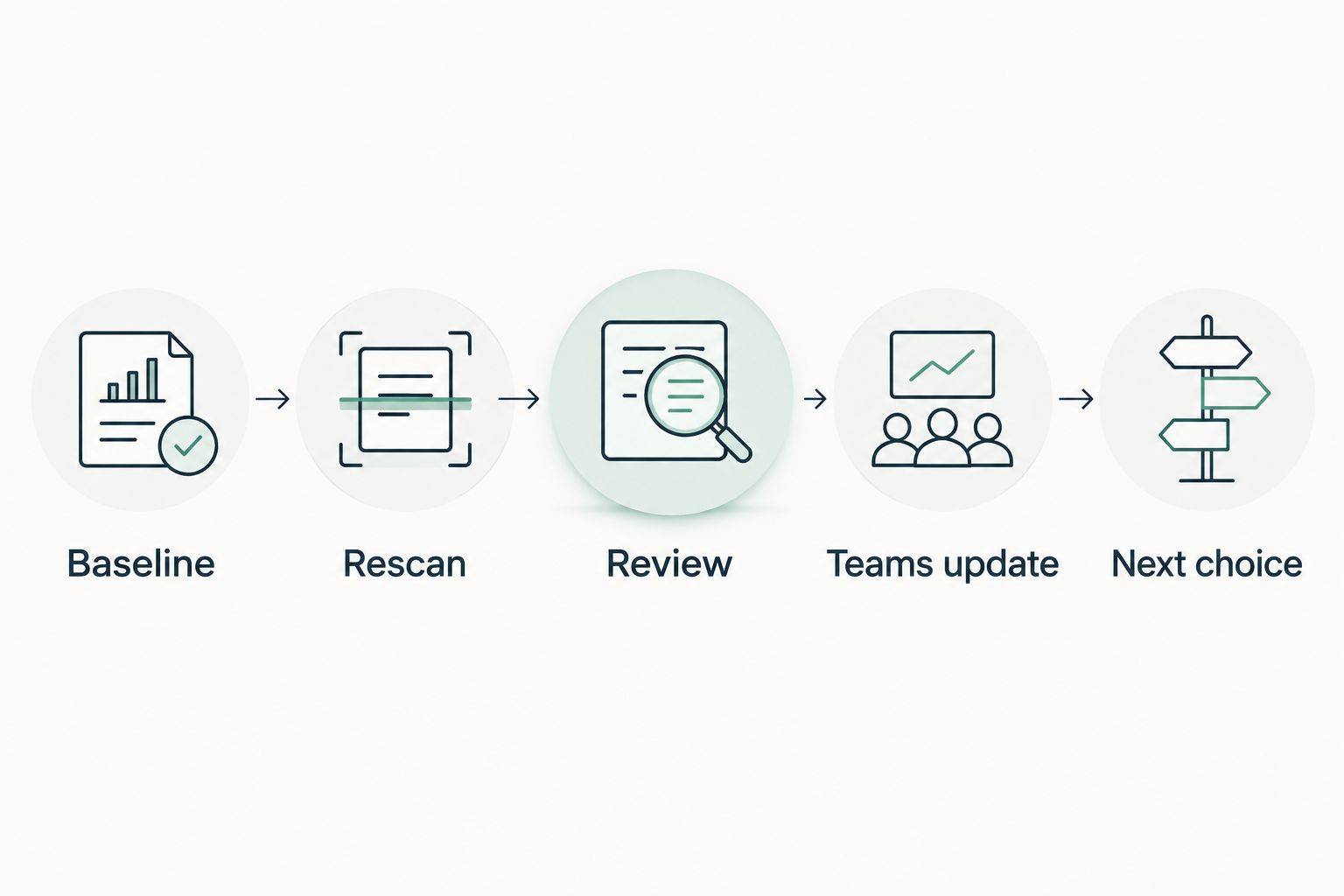
Compare the same affected object and check where possible. Record the earlier and later run dates. If permissions or licenses changed between runs, report the coverage difference alongside the condition.
For this 2026 workflow, proof means a rescan against the pinned baseline. A sent alert, an acknowledged message, and an assigned task show workflow activity. They do not establish remediation.
If the source is unreadable on the later run, say so. Do not report that the earlier condition disappeared. Ask the owner whether to restore access, repeat the review, or defer the claim.
Expected result: The update states what changed, what was comparable, what remains unknown, and what decision belongs to the MSP or customer.
Troubleshooting
The scheduled message never arrives
Inspect the flow run before changing the schedule. Check whether the trigger ran, whether the Teams action failed, and whether its connection requires authentication. Confirm the time zone and next scheduled run.
The Teams action cannot reach the destination
Check the selected posting identity, destination type, membership, and tenant policy. Use a supported destination approved by your administrator. Moving sensitive evidence into a broader channel is not a permissions fix.
Recipients cannot open the evidence
Check the underlying report or document permissions separately from Teams membership. Grant only the access the recipient needs through your approved process. Do not solve the problem by copying restricted tenant details into the message.
The alert contains stale or mismatched evidence
Compare the prospect domain, affected object, meeting record, and actual run date. Replace the handoff with a corrected version and identify what changed. Keep an old observation dated rather than presenting it as current.
A reminder sounds like a completed assessment
Rewrite the scheduled message as a task: review evidence and prepare the packet. Reserve finding language for reviewed observations with attached sources and dates. A clock-based trigger establishes timing, not assessment completion.
Customize your workflow
Build separate templates for first meetings, proposals, and QBRs. A first-meeting packet emphasizes discovery questions. A proposal packet separates the condition, desired outcome, owner, and scope. A QBR packet compares agreed baselines with later evidence.
Keep vendor selection outside the finding itself. The MSP chooses a product, service, process, project, or no action after reviewing the evidence and customer context.
The domain scan to first-call evidence packet workflow provides the next preparation topic. Preserve the same source and date discipline when expanding the handoff.
FAQ
Can I connect SCOUTz to Microsoft Teams with a native connector?
This guide does not establish a native connector. It uses reviewed evidence handoffs and a Power Automate Teams reminder without assuming product APIs, webhooks, or automatic exports.
Does the scheduled reminder detect a completed scan?
No. A recurrence trigger sends a reminder according to its schedule. Detecting a completed scan requires a documented event source that this workflow does not assume.
What should a prospect meeting prep alert include?
Include the prospect, meeting date, observed condition, source, run date, coverage limits, owner, and next question. Reference the evidence through an approved location with appropriate access.
Can a public-domain review establish Microsoft 365 security coverage?
No. Public-domain observations cannot establish Conditional Access coverage, application permissions, license assignments, Intune device state, or tenant sharing configuration. Those areas require appropriate authorized internal evidence.
Does a Microsoft 365 review read email or documents?
The client-supplied review boundary is configuration and metadata only. It excludes mail, files, chats, documents, and prompts, and does not make automatic configuration changes.
How do I report a finding that disappears after a rescan?
Compare the same check and affected object against the pinned baseline, including coverage and permissions. If the later evidence is unreadable or not assessed, report that limit instead of claiming the condition is resolved.
Can I post the full prospect report in a Teams channel?
Post only information approved for that channel’s audience. Check guest membership and report permissions separately, and keep restricted evidence in its approved location.
One last thing
The alert’s send date is not the evidence date. Keep both when they differ. A fresh Teams notification can carry an old observation, and the meeting owner needs to see that distinction before making a claim.